Products
Token locks
Lock one Fungible Asset allocation until a fixed time, with exact fees and claim instructions.
On this page
A fixed token lock moves one exact Fungible Asset allocation into its own untransferable vault. The beneficiary is chosen at creation and may claim the complete allocation only at or after the immutable UTC unlock time.
When to use it#
Use a fixed lock for a one-time release date, such as:
- a team allocation that becomes available on a specific date;
- a treasury or community allocation with a public maturity time;
- a token commitment where partial claims are not required; or
- a simple beneficiary lock without creator cancellation.
For gradual release, use vesting. For continuous payroll accrual, use payment streams.
Before you start#
The creator needs:
- the token's Fungible Asset metadata address;
- enough token balance to fund the entire lock;
- the final beneficiary address and future UTC unlock time; and
- the protocol fee in SUPRA, read live from the on-chain fee schedule, plus network gas.
Verify the token's symbol, decimals, issuer capabilities, and metadata address. Names and symbols are not unique identifiers.
Create a lock#
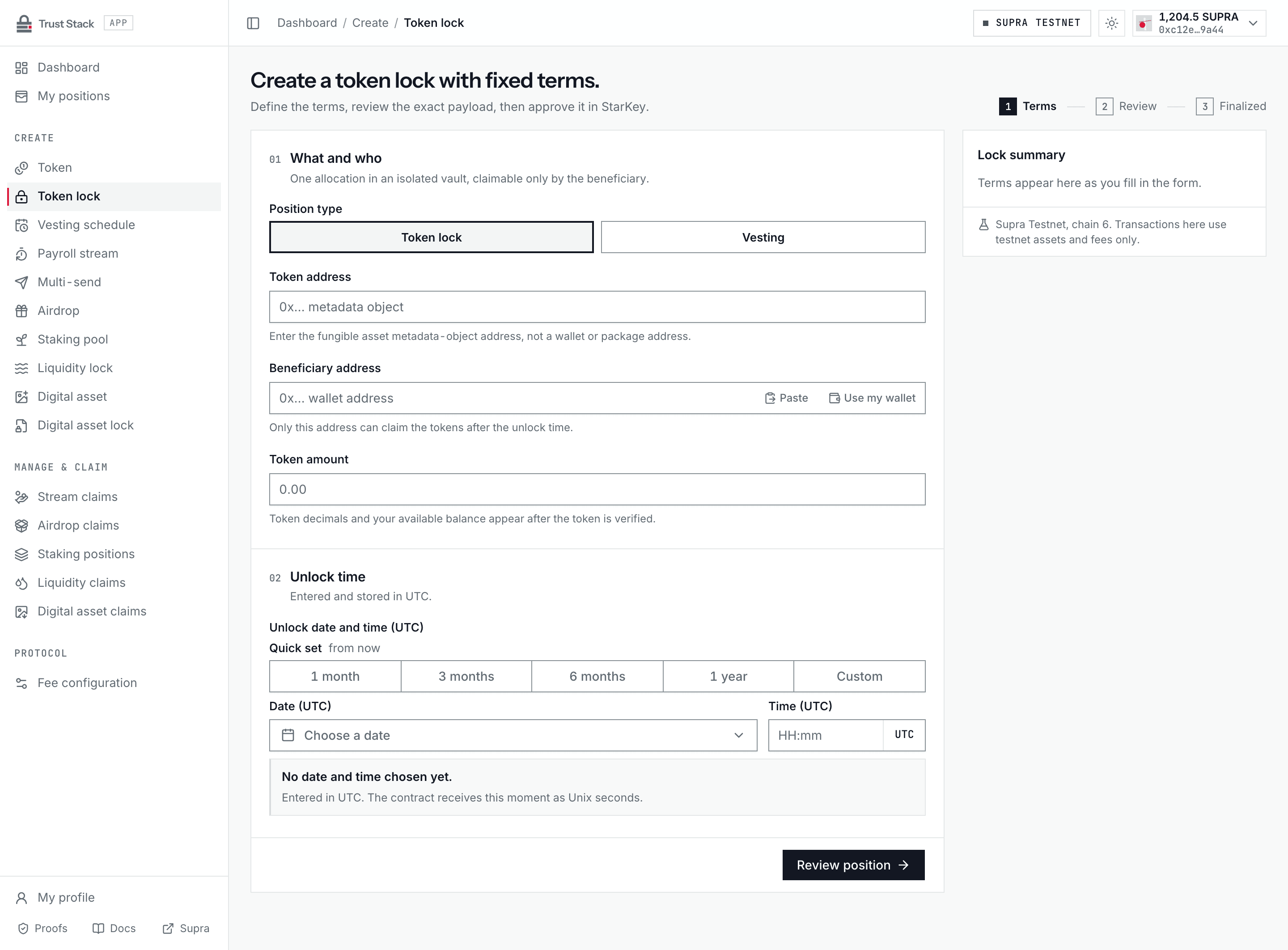
- Open Create token lock (Create > Token lock in the dApp sidebar) and connect StarKey. Position type shows Token lock; switch to Vesting for a gradual release.
- In What and who, enter the Fungible Asset metadata address in Token address. The dApp verifies it on Supra as you type and shows the name, symbol, and decimals. Open Token details to compare the full metadata address, origin, and your live balance.
- Enter the Beneficiary address (use Paste or Use my wallet) and the Amount.
- In Unlock time, set Unlock date and time (UTC) with the date-time picker described below.
- Select Review position and check the proof sheet: network, token, token origin, beneficiary, amount and exact base units, unlock time, position type, and the live protocol fee.
- Select Approve in StarKey and sign the transaction. Use Edit details to return to the form before signing.
- Wait for the matching
LockCreatedevent. The confirmation shows the vault, beneficiary, and fee collector; save the lock object address and transaction hash, then use View public proof or View in My positions.
Funding and lock creation are atomic. A successful transaction withdraws the tokens and deposits them into the new lock vault; it cannot create an unfunded position.
Set a UTC date and time#
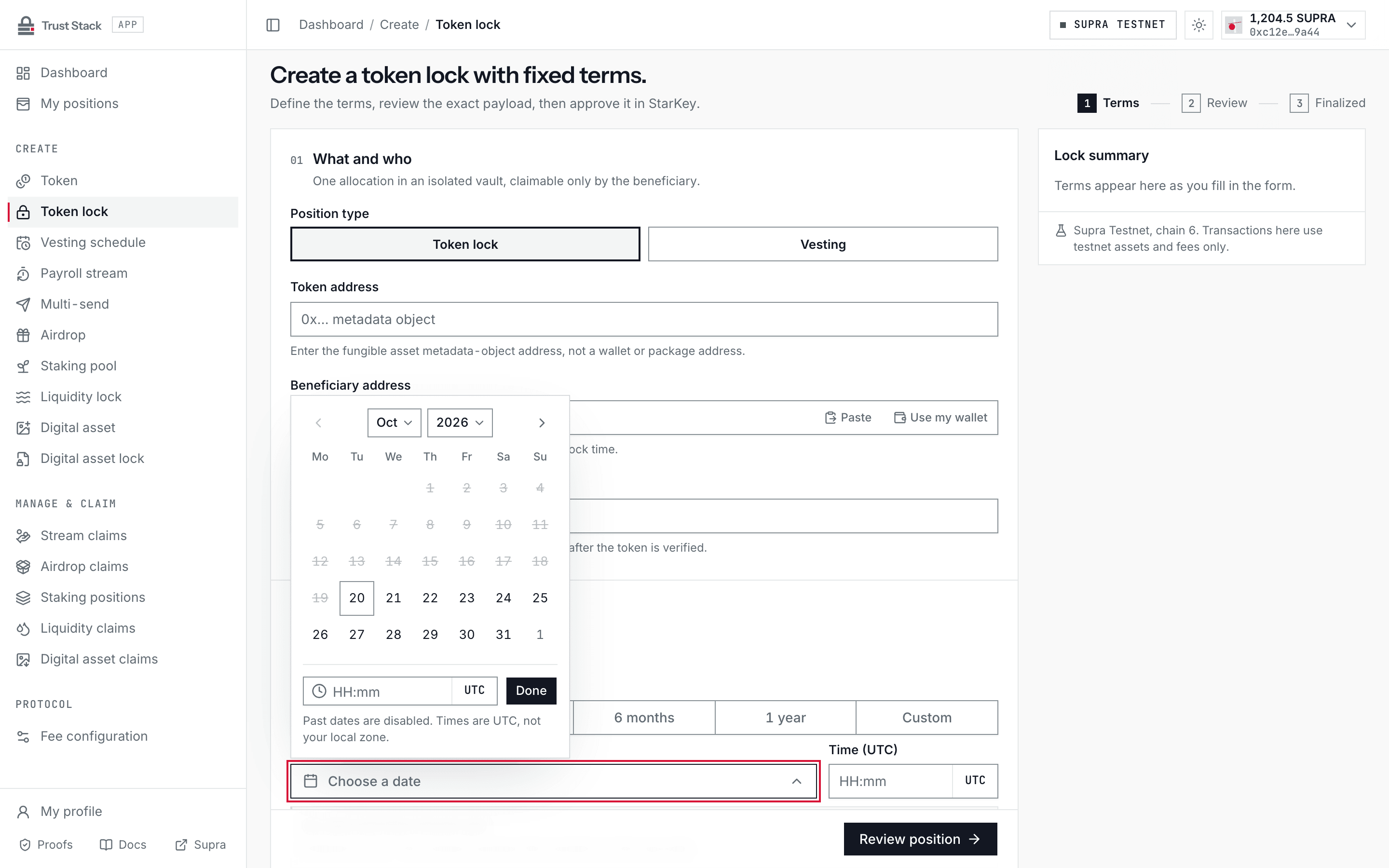
Every date field in the dApp uses the same UTC date-time picker, laid out as a full-width row:
- Quick set applies 1 month, 3 months, 6 months, or 1 year from now (or from the reference time, such as a schedule start); Custom opens the calendar.
- Date (UTC) opens a calendar with month and year selectors. Past dates are disabled.
- Time (UTC) takes a 24-hour
HH:mmvalue. Times are UTC, not your local time zone. - The line under the field repeats the chosen moment in UTC, its distance from now, and the exact Unix seconds the contract receives.
End-time fields on other forms can also be set as a Duration from their reference time. The token-lock form requires an unlock time at least three minutes ahead so review and signing can finish before it passes.
Practical example#
Acme locks 100,000 EXR for a contributor until 1 January 2028.
- Acme supplies the full
100,000 EXRwhen the lock is created. - Acme pays the live protocol fee shown by the dApp before signing, plus creation gas.
- Before 1 January 2028, neither Acme nor the contributor can withdraw the allocation.
- At maturity, the contributor signs one claim and receives all
100,000 EXR. - The contributor pays claim gas, but Trust Stack charges no claim fee.
The creator cannot shorten, extend, split, revoke, transfer, or change the beneficiary after creation.
Fees and costs#
| Action | Trust Stack protocol fee | Who pays | Other cost |
|---|---|---|---|
| Create fixed token lock | Governed SUPRA fee, read live | Creator | Full token allocation and Supra network gas |
| Claim matured lock | None | Beneficiary | Supra network gas |
| Read or verify a lock | None | Nobody | None |
| Sweep accidental surplus | None | Transaction signer | Supra network gas |
The protocol fee is separate from the locked asset; it does not reduce the beneficiary's token allocation. It is charged only when creation succeeds. An abort rolls back both the vault and protocol fee transfer, although failed transactions may still consume network gas.
The signed transaction includes a maximum acceptable fee. The fee is read live from the on-chain fee schedule and stays under the immutable 10,000 SUPRA cap. Governance may move it within that cap; a proposed change applies only after the governance delay. On revision-6 testnet the fee governor is a single-key wallet, not a multisig, and the delay is shortened to 300 seconds for testing. Outside the allow-listed test chains the contract rejects delays below 48 hours, and the prepared mainnet payloads use 7 days. See Fee governance.
Claim a lock#
- Connect the beneficiary wallet on Supra Testnet.
- Open My positions or the lock's direct claim link. In My positions, open the Token locks tab and select Claim on the row.
- On the claim page, verify the lock terms read from Supra: beneficiary, token metadata, unlock time, vault balance, and vault object.
- Wait until the on-chain timestamp reaches the unlock time; until then the page counts down to it.
- Select Claim followed by the amount and token symbol, approve the transaction in StarKey, and
wait for the matching
LockClaimedevent. - Confirm the position is terminal, the vault is empty, and the beneficiary balance increased by the exact locked amount.
The claim action appears only after maturity and before the one-time claim completes. If another account is connected, the button reads Switch to followed by the beneficiary's short address instead of submitting a claim that would fail.
What is guaranteed#
- Creation and full funding succeed or fail together.
- Only the immutable beneficiary can claim.
- The creator has no early-withdrawal path.
- Every position has an isolated object and vault; user funds are not pooled.
- The claim is one-time and should leave the expected vault balance at zero.
- Accidental surplus cannot be redirected to the creator or an arbitrary caller.
Common problems#
- Wrong token displayed: stop and compare the full metadata address.
- Insufficient balance: the creator needs the locked tokens, the live protocol fee, and gas.
- Claim button disabled: confirm the connected wallet and the on-chain unlock timestamp.
- Position missing: use the saved object address directly; indexer discovery may lag the chain.
- Token has issuer controls: a vault cannot remove mint, freeze, or dispatch capabilities retained by the asset issuer.